
Cart
Kyoto's cart can be a drawer that slides in, a full page, or a small pop-up. The cart drawer and the cart page are built from the same blocks, so you set them up the same way. Global cart settings are in Theme settings > Cart.
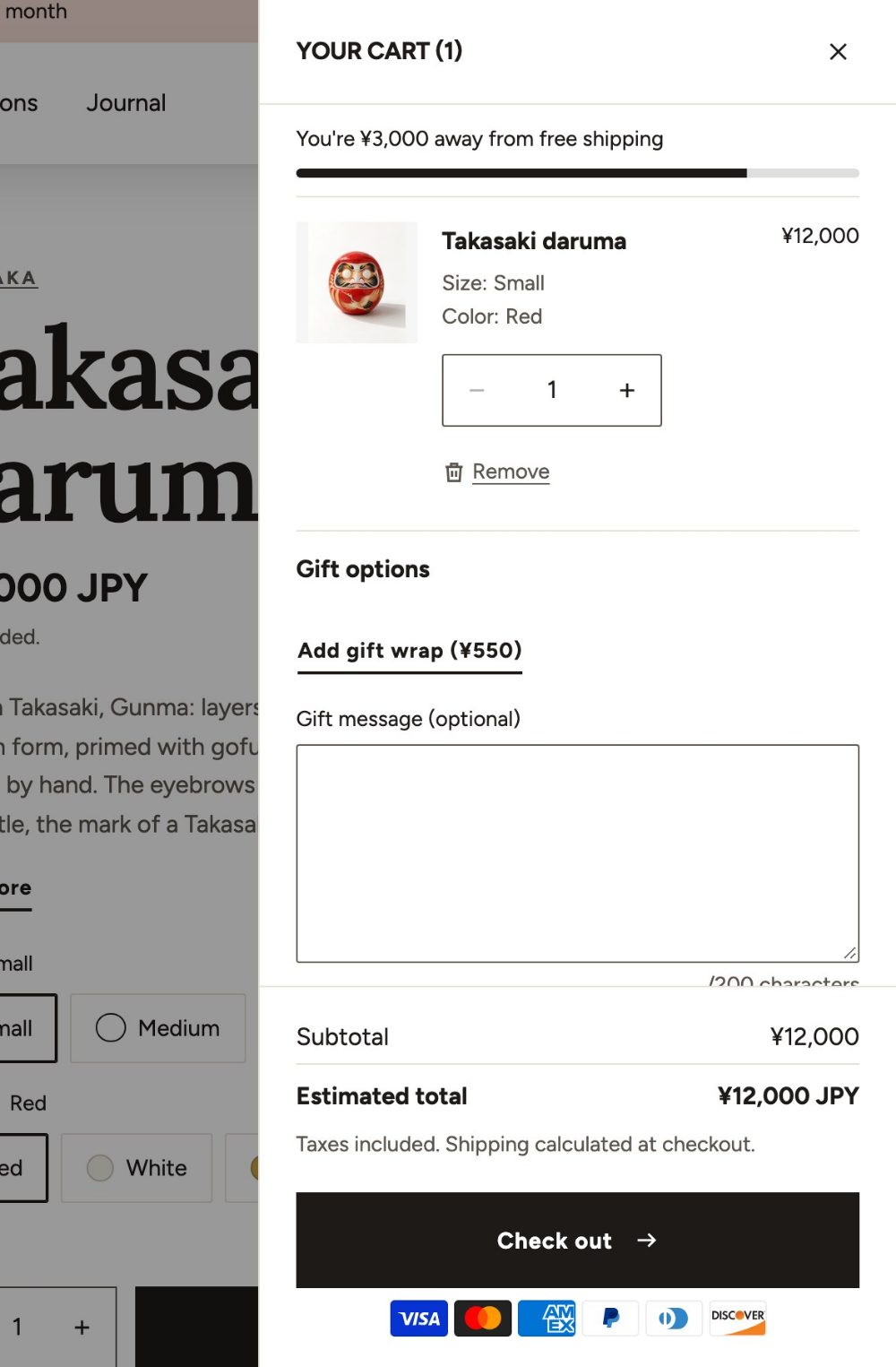
Cart type
| Setting | Choices | What it does |
|---|---|---|
| Cart type | Drawer, Page, Pop-up | Drawer opens the cart from the side. Page goes to the cart page. Pop-up shows a small "Added to your cart" panel. |
| Open drawer after adding | On or off | With Drawer. Off: the small panel shows instead and the drawer opens from the cart icon. |
| Show recommendations | On or off | Turns the Recommendations block on or off everywhere. |
| Show vendor | On or off | |
| Show installments message | On or off | Shows the Shop Pay Installments message when your store offers it. |
| Show accelerated checkout buttons | On or off | Shop Pay, Apple Pay, Google Pay and other express buttons, as set up in your payment settings. |
| Collection in empty cart | Collection | Products from this collection show when the cart is empty. |
To edit the cart drawer, open any page in the theme editor and select Cart drawer in the Overlays area at the bottom of the sidebar. To edit the cart page, choose Cart from the page menu at the top. On the cart page, choose Layout (One column, Two columns) and Sticky order summary.
Cart blocks
Both the cart drawer and the cart page take these blocks. Add, remove and reorder them freely.
| Block | What it does |
|---|---|
| Free shipping progress | How much more the shopper needs for free shipping. See below. |
| Cart items | The products in the cart. Image ratio, Show vendor, Show low stock with Low stock threshold (1 to 20). |
| Order note | A note field. Turn on Show order note in Theme settings > Cart. Maximum characters: 100 to 1000. |
| Gift options | Gift wrap, a gift message and "hide prices on the packing slip". See below. |
| Noshi (Japan) | Japanese gift wrapper choices. See below. |
| Delivery date (Japan) | A requested delivery date and time. See below. |
| Subtotal | The subtotal, with Show savings. |
| Terms agreement | A checkbox that must be ticked before checkout. Turn on Require terms agreement in Theme settings > Cart and choose your terms Page. |
| Checkout button | Show total on button, Show payment icons. |
| Recommendations | Complementary, related or hand-picked products (Number to show: 2 to 8; Layout: Carousel, List). |
| Shipping estimate | Cart page only. Shoppers enter their country and postal code to see shipping rates. |
| Trust points | Up to three short promises with icons. |
| Cart promotion | An image, heading, text and link. Show when: Always, Before free shipping, After free shipping. |
| Text, Custom liquid, app blocks | Your own content. |
Free shipping progress
Kyoto can tell shoppers how far they are from free shipping. The message only shows an amount; the free shipping itself must be set up in Settings > Shipping and delivery. Use the same amount in both places.
| Setting | Choices | What it does |
|---|---|---|
| Show free shipping progress | On or off | Turns the progress on everywhere. |
| Free shipping minimum | Number | In your store currency. Leave empty to hide the progress. |
| Message wording | Free shipping, Shipping on us | |
| Progress on cart icon | None, Ring, Dot | Ring shows the progress around the cart icon; Dot appears once free shipping is reached. Shown in the header and the mobile tab bar. |
| Minimum per currency | Text, for example USD:50, EUR:45 | Amounts for other currencies. They replace the converted amount. |
| Free shipping based on | After discounts, Before discounts | Choose the one your free shipping rate uses. Only items that need shipping are counted. |
The progress appears in:
- The cart drawer and the cart page, with the Free shipping progress block (Style: Bar, Line, Text; and a Success message).
- The product page, inside the Buy buttons block (Style: Text, Line, Bar).
- The announcement bar, when an Announcement block has Content set to Free shipping.
- The cart icon, with Progress on cart icon.
Selling in several currencies: without Minimum per currency, Kyoto converts your minimum into the shopper's currency, so the amount can differ slightly from a fixed shipping rate you set for that market. If your markets have fixed free shipping amounts, enter the same amounts in Minimum per currency.
Gift wrap and gift messages
- Create a product called, for example, "Gift wrap" with its own price and photo. You can hide it from your collections.
- Choose it in Theme settings > Cart > Gift wrap product.
- In the Gift options block, turn on Show gift wrap. Shoppers can add or remove the wrap with one button.
- For a message, turn on Show gift message in Theme settings > Cart and Show message field in the block. Set the Message character limit (50 to 500).
- Show hide prices option adds a checkbox for "don't show prices on the packing slip". The choice is saved on the order, where you and your packing team can see it.
The message and the packing slip choice are saved on the order as cart attributes under the Name saved on the order you choose. Pick these names before your first order: order exports and apps look for the exact words.
The gift wrap can also be offered on the product page; see Product page.
Noshi and delivery dates
These are for shops that sell in Japan.
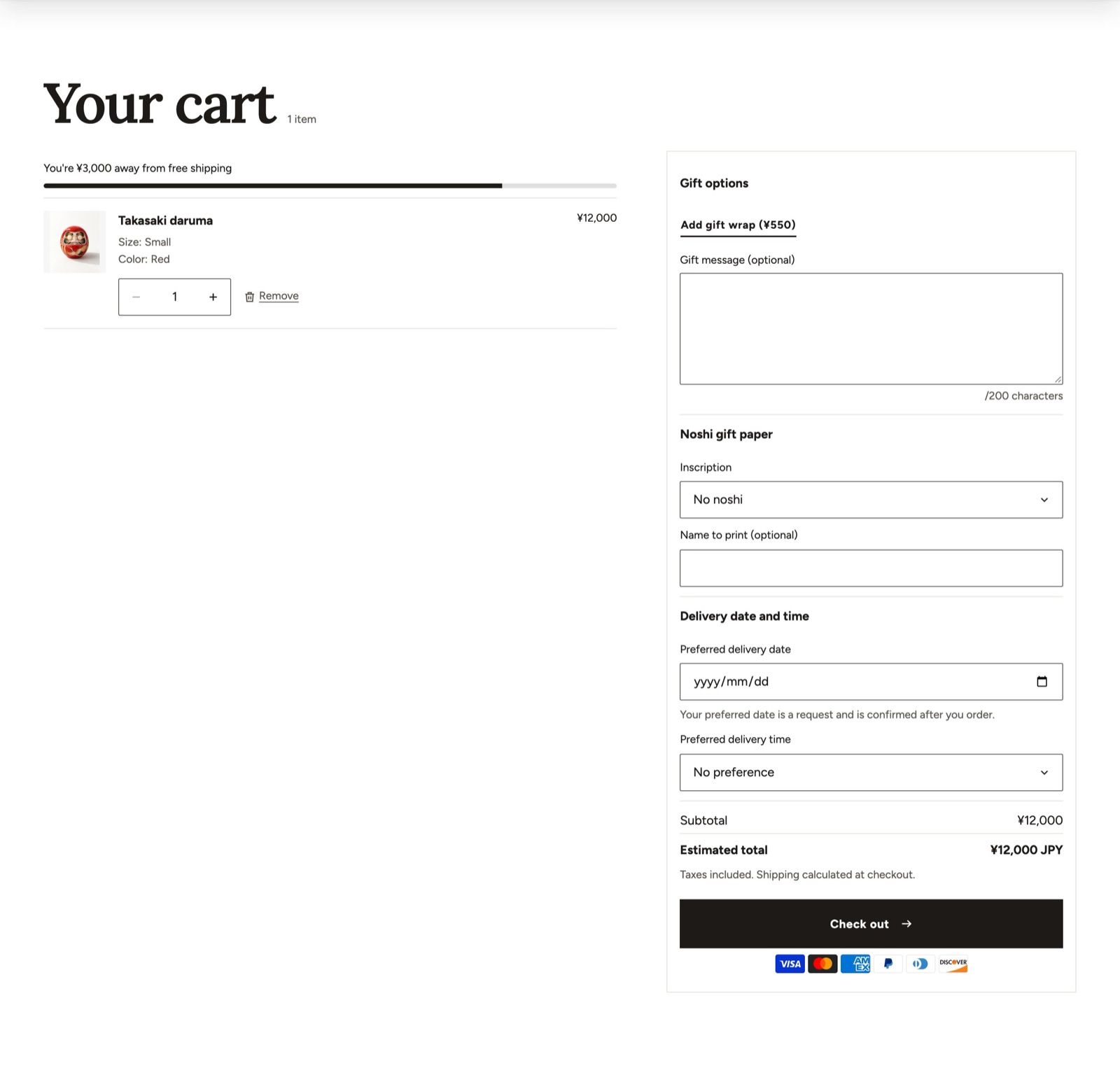
Noshi
- Turn on Enable noshi in Theme settings > Region and language.
- Edit Noshi inscriptions (comma separated). "No noshi" is always added as the first choice.
- Add the Noshi (Japan) block to the cart drawer and the cart page.
The noshi choice and the name to print are saved on the order as cart attributes.
Requested delivery date and time
- Turn on Enable delivery date and time in Theme settings > Region and language.
- Set Earliest delivery (days) (1 to 14 days from today), Selectable range (days) (7 to 60) and Delivery time slots (comma separated, for example
Morning, 2-4 pm). - Add the Delivery date (Japan) block to the cart drawer and the cart page.
The date and time are a request, never required, and are saved on the order as cart attributes.
What the theme can't change: these fields live in the cart. The checkout is Shopify's own page and a theme can't add fields to it or change their order (for example a furigana field or a delivery date field at checkout). Use Settings > Checkout or a checkout app for that.
No JavaScript, no problem
The cart works without JavaScript: adding to cart, changing quantities, removing items, gift wrap and checkout all use plain forms. If a shopper's browser blocks scripts, they are taken to the cart page instead of the drawer.